
Image to PDF — Turn Phone Photos into One Clean PDF
Add JPG, PNG or WebP photos, put them in order, and download one A4 PDF. Your files never leave your browser.
Drag photos here, or choose images
JPG, PNG or WebP only. Up to 50 images. Each image under 20 MB.
Quick answer
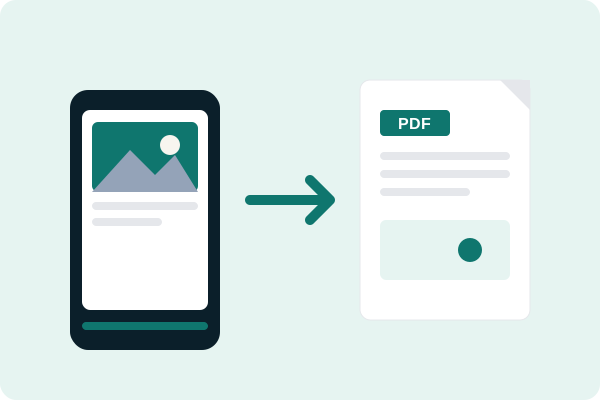
Yes. Open this page, add JPG, PNG or WebP photos, put them in the order you want, and tap Create PDF. Each photo becomes one page, and the file downloads as a single A4 PDF. The photos are handled in your browser, so they are not uploaded to a server. There is no sign-up and no watermark.
How to use Image to PDF
You can finish the whole job in under a minute. The tool runs on your phone, tablet or computer, and you do not need to install an app.
Add your images
Tap Choose images, or drag photos into the box. You can add up to 50 images. JPG, PNG and WebP are accepted, and each file must be under 20 MB. If a photo is larger, shrink it first, then add it again.
Arrange them
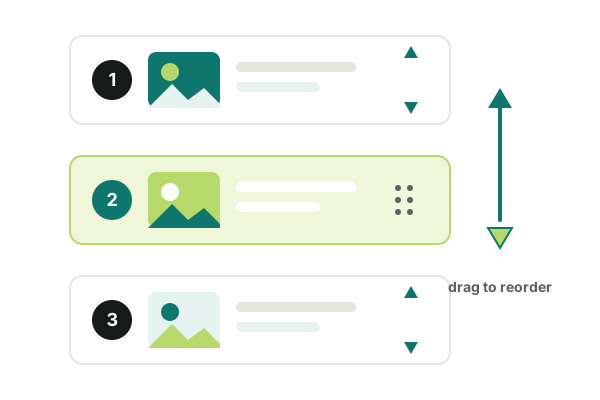
Drag an image to a new spot, or use the arrow buttons to move it up or down. The order shown on the screen is the order in the PDF. Check it before you build the file, so the pages come out in the right order.
Pick the page size
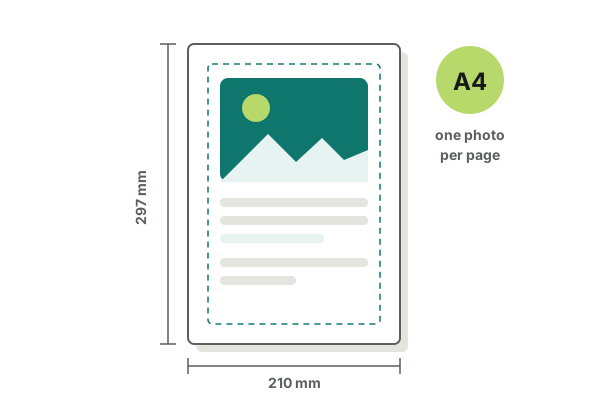
Choose A4 if you want to print the pages. A4 is 210 mm wide and 297 mm tall. Choose Fit to page if you want a wide or tall photo to fill the page. A4 keeps printed notes neat; Fit to page keeps wide photos large.
Create and download
Tap Create PDF, wait for the progress bar, then tap Download PDF. Open the file to check it, and tap Start over when you want to build a new one. The file name is images-to-pdf.pdf.
Real example: notes after class
A student takes photos of her written notes after class, and wants one file to print. She opens this page on her phone, adds 12 photos of the notebook pages, and puts them in the right order. Two photos are sideways, so she rotates them in the tool. She picks A4, taps Create PDF, and downloads one file. She prints it at home, and the pages come out in the right order. The whole job takes about two minutes, and nothing is uploaded.
The same steps work for scanned receipts, worksheets and forms. Take clear photos in good light, then let the tool put them into one PDF.
Why use this tool
This tool is built for one job: turning phone photos into a tidy PDF, without an app or an account. The points below explain what makes it useful, and what it does not try to do.
Multiple images to one PDF
Add up to 50 photos and get a single PDF. You can reorder images before you build the file, so your pages stay in order. This is useful for notes, forms and receipts that belong together.
Nothing to install
There is no app to download and no account to make. Open the page in your browser and start. It works in Chrome, Safari, Edge and Firefox, on a phone, a tablet or a computer.
Phone photo to PDF
The tool is built for phone photos. Add pictures from your gallery, rotate any that are sideways, and download a PDF that opens in any PDF reader. It is the quick way to turn a phone photo to PDF without a scanner.
Rotate image in PDF
A sideways photo is easy to fix. Tap Rotate 90° on any image to turn it the right way round before you build the PDF. The rotation is saved in the file, so the page opens the right way round in any reader.
A4 page size
A4 is the standard paper size in the UK and most of Europe. When you pick A4, each photo is fitted to a page 210 mm wide and 297 mm tall, with a small margin. Your notes print neatly, one photo per page.
A free image to PDF converter
The tool is free to use, with no fee and no watermark on the PDF. You do not need to sign up, and you are not asked for an email. Use it as often as you need it, for notes, forms and photos.
Image to PDF compared with other ways
If you have used other ways to make a PDF, this table shows how this tool differs. Pick the row that matches your need.
| Method | What you do | What you get | Best for |
|---|---|---|---|
| Image to PDF (this tool) | Add photos in the browser, arrange them, tap Create PDF | One A4 PDF, in order, no watermark | Notes, forms and phone photos |
| Print to PDF | Open a photo and print it to a PDF | One photo per file, unless you merge them | A single photo, in a hurry |
| Phone photo app | Open an app, scan the page, save it | A PDF, often with a watermark unless you pay | Scans, if you already have the app |
| Scan to PDF app | Scan each page with your camera | A PDF, often with extra steps to fix the order | Paper documents you need to scan |
| Word or Docs | Insert photos into a document, then export it | A PDF, but the layout takes time to fix | A report with text and photos |
If you used a scan to pdf app before, this tool is simpler when your photos are already in your gallery. You skip the scan step and go straight to a PDF.
Pros and cons
Pros
- No account or sign-up needed.
- No watermark on the PDF.
- Works on a phone, tablet or computer.
- Reorder images and rotate any that are sideways.
- Files stay in your browser and are never uploaded.
- Up to 50 images in one PDF.
Cons
- Each image must be under 20 MB.
- HEIC photos are not accepted; convert them to JPG first.
- You need an internet connection to open this page.
Who uses it
Students
Students take photos of notes, worksheets and whiteboards, then turn them into one PDF to print or send to a friend. It is quick, free and works on a phone.
Teachers
Teachers use it to turn photos of handouts and homework into a single PDF for the class. It saves time when there is no scanner nearby.
Job applicants
Job applicants use it to send certificates, IDs and forms as one PDF. It looks neat, opens anywhere, and prints cleanly on A4.
Small shops
Small shops use it to send receipts, invoices and photos of stock as one PDF. It is a simple way to share papers without a scanner.
Use cases
The tool fits many small jobs. Here are some of the most common ways people use it.
- Class notes from a notebook
- Homework and worksheets
- Receipts for expenses
- Application forms and certificates
- Medical forms and letters
- Contracts and signed papers
- Recipes from a book or a card
- Travel tickets and bookings
- Photos of a whiteboard
- Hand-drawn sketches
- Old family photos
- Artwork for a portfolio
- IDs and passports for an application
- Bank statements and bills
- School permission slips
- Event flyers and posters
What this tool cannot do
Convert them to JPG first.
It makes a PDF of the image, not a text file.
It only builds a new one from images.
Use our Merge PDF tool for that job.
Start with a clear, well-lit photo.
Common problems and quick fixes
Most problems have a quick fix. Still stuck? Contact us or browse our Help Center.
The PDF looks sideways
Open the file and check the order before you build it. If a photo is sideways, tap Rotate 90° on that image, then tap Create PDF again. The rotation is saved in the PDF.
A file is over 20 MB
Each image must be under 20 MB. Shrink the photo on your phone first, then add it again. A smaller file also builds faster, and the PDF is smaller.
The PDF is very large
Large photos make a large PDF. If the file is too big to send, use smaller photos or fewer images, or shrink the finished file with our Compress PDF tool. The PDF size depends on the size of the photos you add.
The PDF will not download
Check that the PDF library has loaded. If the page says the library did not load, check your internet connection and refresh the page. Then add your images and try again.
The order is wrong
Drag an image to a new spot, or use the arrow buttons to move it. The list order is the PDF order, so check it before you tap Create PDF.
My photos are HEIC
HEIC photos are not accepted. Convert them to JPG first, then add them again.
Security and privacy
- Your photos are handled in your browser and are never uploaded to a server
- No one else can see them
- Close the tab and the files are gone from the page
- No account is needed, and no email is asked for
Legal use
- Only use photos you own, or that you have the right to share
- Do not upload private papers that belong to someone else
- Do not use the tool to copy work that is not yours
- Keep your own files safe, and check the PDF before you send it to anyone
Frequently asked questions
How do I convert image to pdf online?
Add JPG, PNG or WebP images, arrange them in the order you want, and choose A4 or Fit to page. Tap Create PDF and save the file when the download button appears. The work happens in your browser, so nothing is uploaded to a server.
Is this image to pdf online free?
Yes, it is free to use. There is no fee, no account and no watermark on the PDF you download. You can use it as often as you need, for notes, forms and photos, on your phone or on your computer.
Can I do image to pdf on mobile?
Yes, you can use it on your phone. Open the page in your mobile browser, add photos from your gallery, arrange them in order, and download the PDF. The buttons are large, the tool works without an app, and it works in Chrome, Safari and other phone browsers.
Can I turn a photo to pdf from my phone?
Yes, that is the main use here. Add phone photos, rotate any sideways ones, and download one PDF. The file opens in any PDF reader, and you can print it or send it to a friend. It works on a phone, a tablet or a computer.
How do I make a jpg to pdf?
Add a JPG photo and tap Create PDF. The same steps work for png to pdf and jpeg to pdf. Pick A4 if you want to print the file, or Fit to page if you want the photo to fill the page.
Does webp to pdf work here?
Yes, WebP images work here. They are changed in your browser to JPEG first, then placed in the PDF. Quality stays close to the original photo, and the file opens in any PDF reader. You can open the PDF on a phone, a tablet or a computer.
Can I combine images into pdf as one file?
Yes, you can add several images and they become one PDF, in the order shown on the page. Use drag or the arrow buttons to move an image, then tap Create PDF to build the file. Check the list order before you tap Create PDF.
Will the PDF lose quality?
A good photo stays sharp in the PDF. Use clear, well-lit photos for the best result, and do not shrink a photo before you add it. A blurry photo cannot be improved by converting it to PDF. Start with a sharp photo and the PDF will look clean.
What is the image to pdf file size limit?
Each image must be under 20 MB. If a photo is larger, shrink it on your phone first, then add it again. You can add up to 50 images in one PDF, but very large sets may be slow on older phones.
Is this image to pdf secure?
Yes, it is secure in the way it handles your files. They are processed in your browser and never uploaded, so no one else sees your photos. Close the tab and the files are gone from the page. No account is needed, and no email is asked for.
Related tools
These free tools are on this site. They help with other kinds of downloads and guides. You can also browse all our free PDF tools.
More downloaders
More PDF and study tools
PDF to JPG
Convert PDF pages to JPG.
Merge PDF
Combine PDF files into one PDF.
Split PDF
Take one chapter out of a big PDF.
Compress PDF
Shrink a PDF file in your browser.
PDF to PPT
Turn a PDF into PowerPoint slides.
PDF to Word
Turn a PDF into an editable Word file.
Word to PDF
Turn a Word file into a PDF.
Citation Generator
Build APA, MLA, Chicago and Harvard references.
SlideShare tools and guides
Ready to make your PDF?
Add your photos now with Image to PDF — one file, in order, in seconds, free.
Add Your PhotosImportant: You can add up to 50 images, each under 20 MB, in JPG, PNG or WebP. HEIC photos are not accepted. Your photos are handled in your browser and are never uploaded to a server.
Disclaimer: Use this tool only with photos you own or have the right to share. Users are responsible for making sure their use of any image or document complies with applicable copyright laws and the rights of its owner. Read our full disclaimer.